2 Data Entry and Import
(PSY206) Data Management and Analysis
1 Data Entry in SPSS
1.1 Data Editor Window
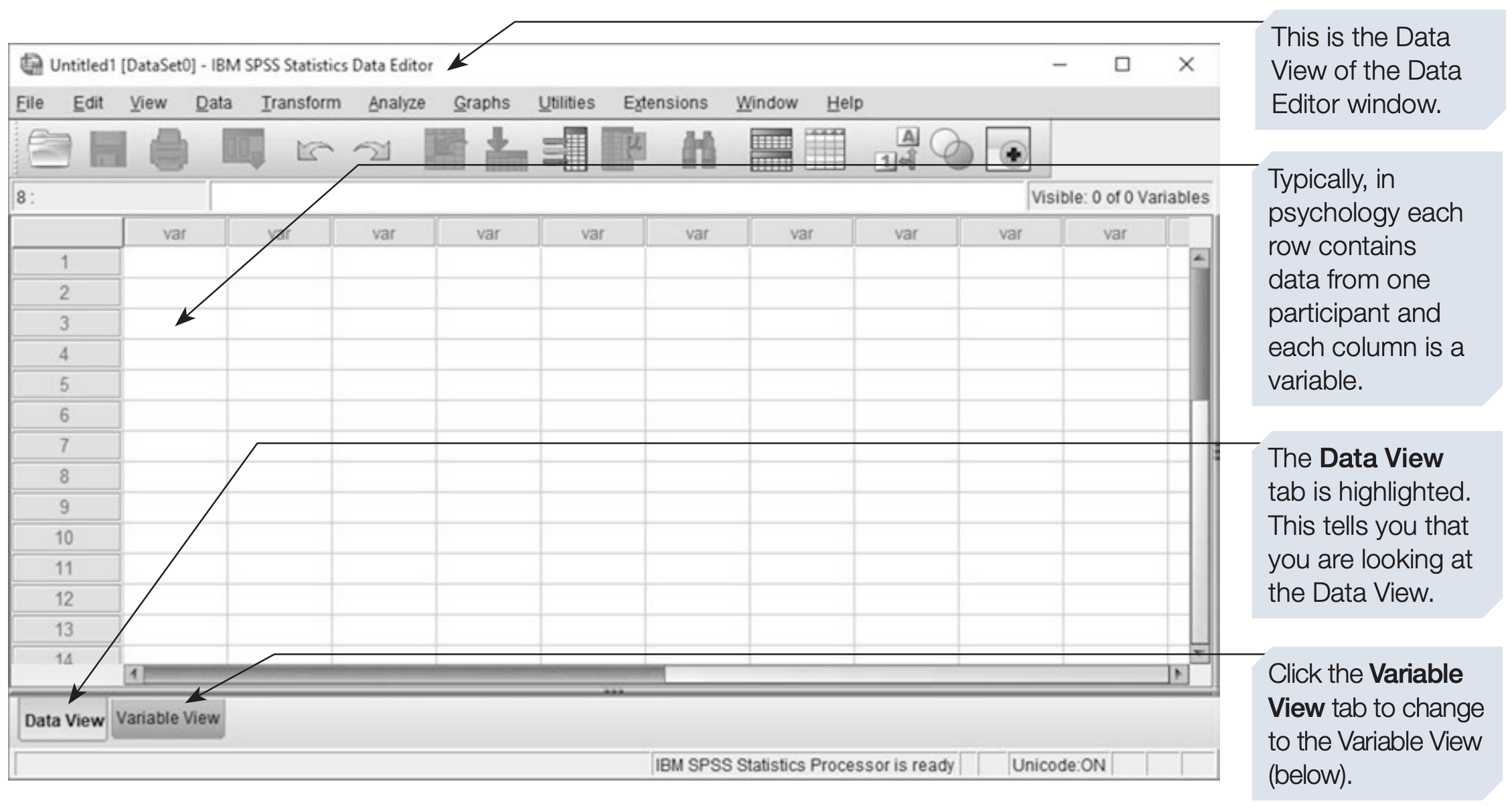
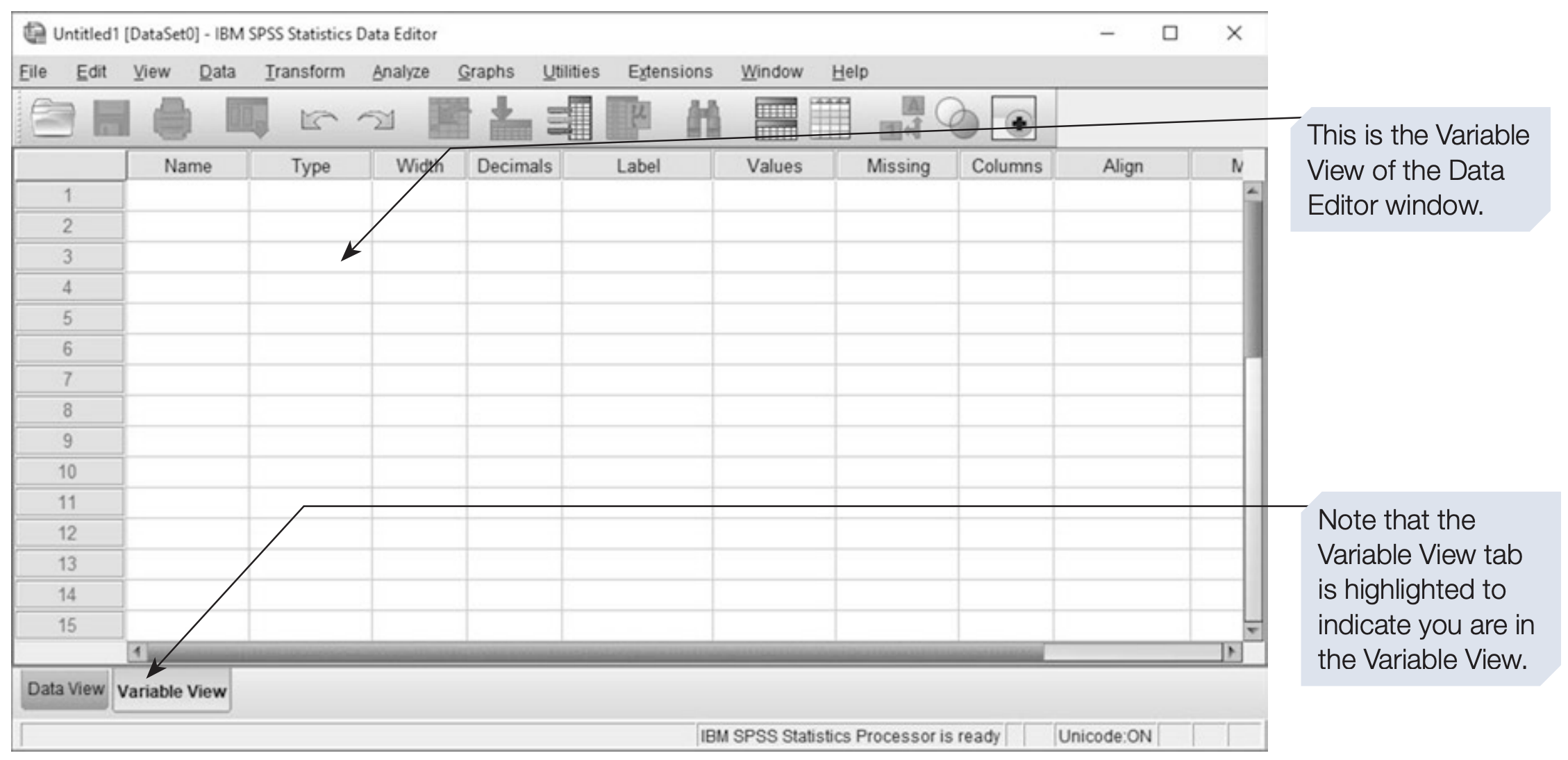
The SPSS Data Editor is the main window used to view, define, and edit data. It has two views:
- Data View – displays the dataset in spreadsheet form, where rows represent observations and columns represent variables.
- Variable View – used to define the properties of variables, such as their names, types, labels, missing values, and measurement levels.
1.2 Defining Variables
Before entering data, it is important to define the variables properly:
- Choose clear and meaningful variable names.
- Decide how categorical variables will be coded.
- Select an appropriate variable type, such as numeric, string, or date.
- Add variable and value labels where appropriate.
- Specify user-missing values when necessary.
- Select the appropriate measurement level.
Good variable definitions make the dataset easier to understand, check, and analyse.
1.2.1 Variable Name
A variable name:
- Must begin with a letter.
- Cannot contain spaces.
- Can contain letters, numbers, and underscores (
_). - Should be short but meaningful.
- Should not use spaces or special characters as part of the name.
Examples:
age
gender
income_level
memory_score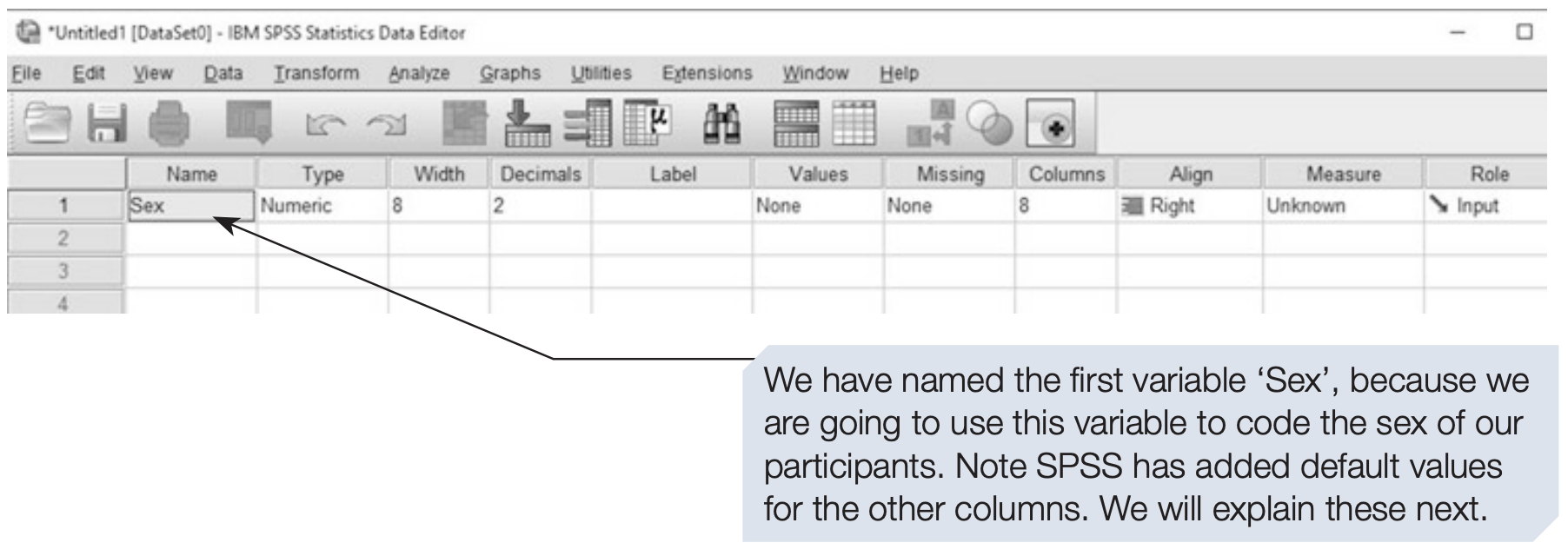
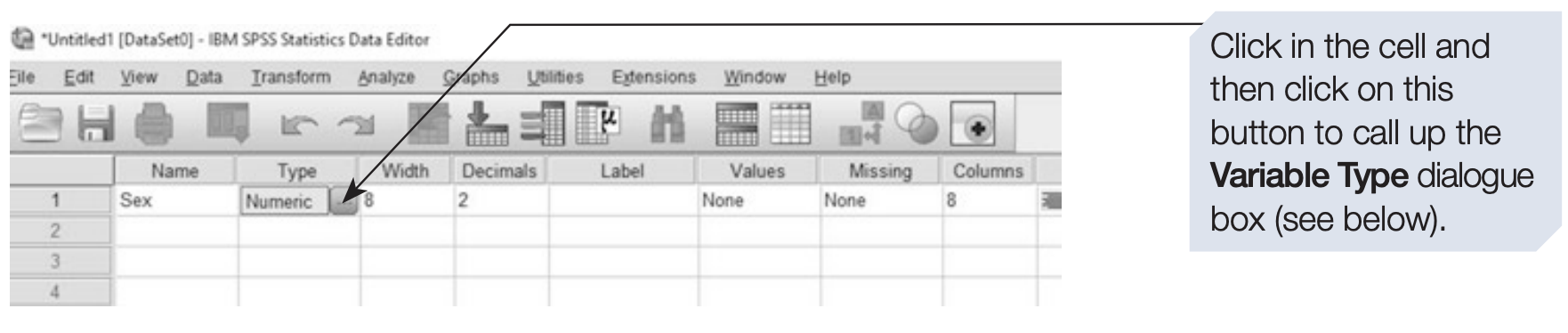
1.2.2 Variable Type
The Type determines the kind of data stored in a variable.
Common types include:
- Numeric – numbers such as age, income, or a coded categorical variable.
- String – text such as names, addresses, or other textual information.
- Date – dates and times.
- Other specialised numeric formats are also available.
For categorical variables, it is often convenient to use numeric codes with value labels. For example:
1 = Male
2 = Female
3 = Other
This allows the variable to remain numeric while displaying meaningful category labels.
Note: String variables are not inherently wrong. They are appropriate when the data are genuinely textual, such as names or addresses. However, categorical variables that will be analysed statistically are often easier to manage when they are coded numerically.
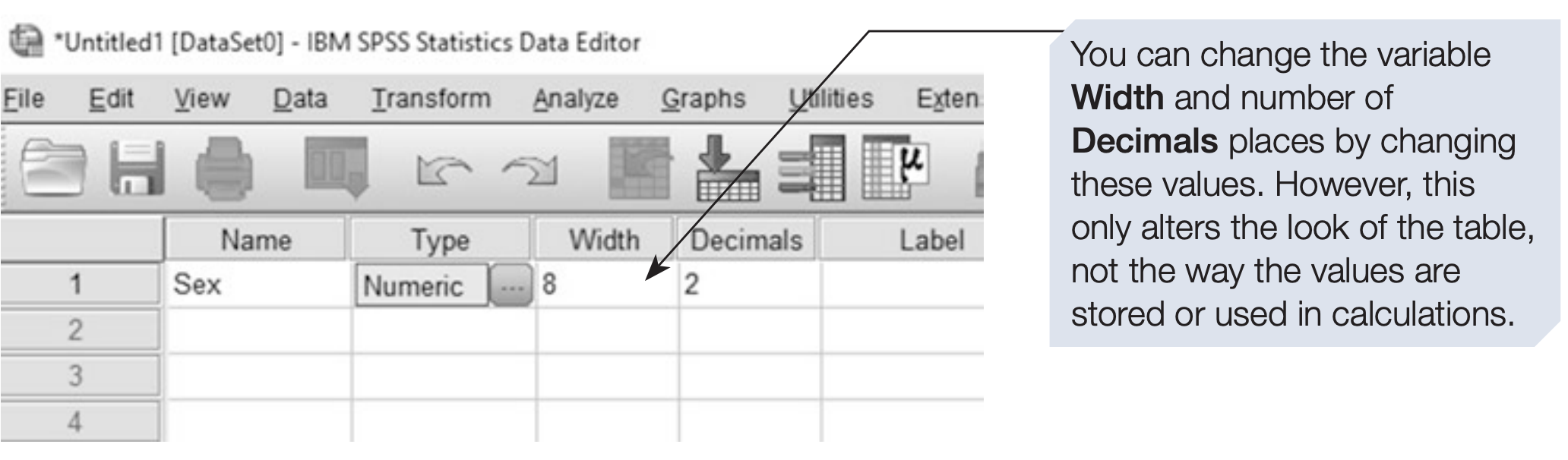
1.2.3 Variable Width & Decimals
- Width controls the number of characters or display positions available for the variable.
- For numeric variables, Decimals determines the number of decimal places displayed.
- These settings are mainly related to how values are displayed and stored in the Data Editor; they do not determine the statistical precision of an analysis.
For example, a variable such as age may have:
Type: Numeric
Width: 3
Decimals: 0
while a variable such as height might use:
Type: Numeric
Width: 6
Decimals: 2
The default settings are often sufficient, but they can be changed when necessary.
1.2.4 Variable Labels
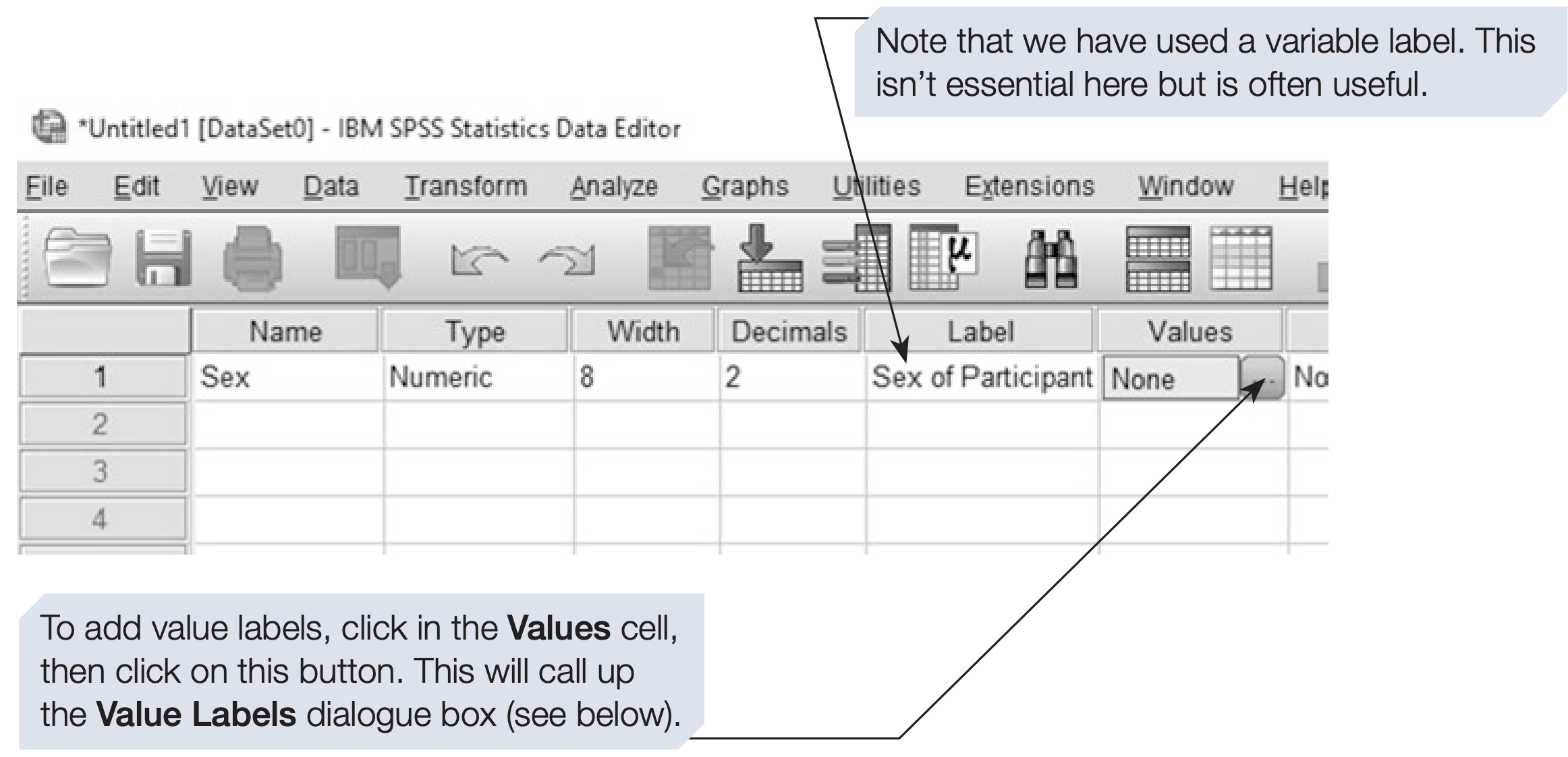
A variable label provides a more descriptive explanation of a variable.
For example:
Variable name: age
Variable label: Respondent age in years
Variable labels:
- Make variables easier to understand.
- Often appear in SPSS output.
- Are particularly useful when variable names are short.
Variable labels are not mandatory, but they are highly recommended.
1.2.5 Value Labels
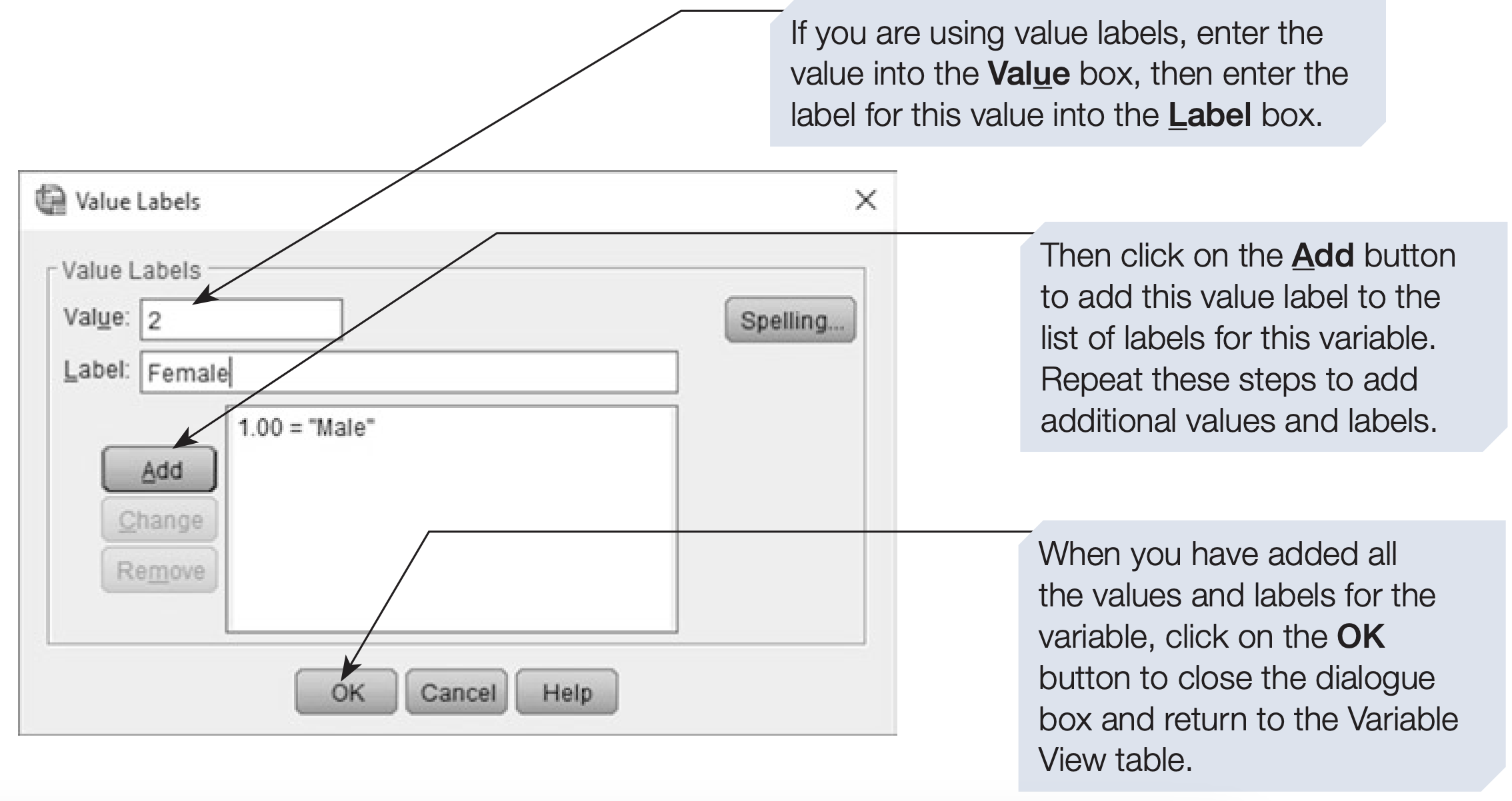
Value labels give meaningful descriptions to numeric codes.
For example:
1 = Male
2 = Female
3 = Other
The data remain numeric, but SPSS can display the corresponding labels when appropriate.
1.2.6 Missing Values
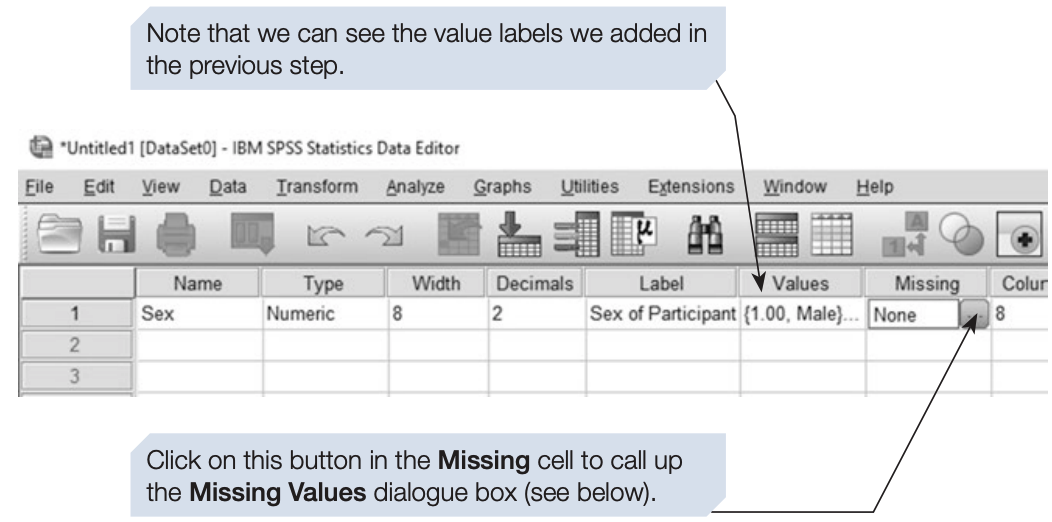
Missing values occur when information is unavailable or was not recorded.
SPSS automatically recognises a blank numeric cell as system-missing. In some datasets, however, special codes may be used to represent missing information, for example:
99 = MissingSuch values can be defined as user-missing values in Variable View.
Important: A value such as
99is not automatically treated as missing just because it is intended to mean “missing.” It must be defined as a user-missing value, or otherwise handled appropriately during analysis.
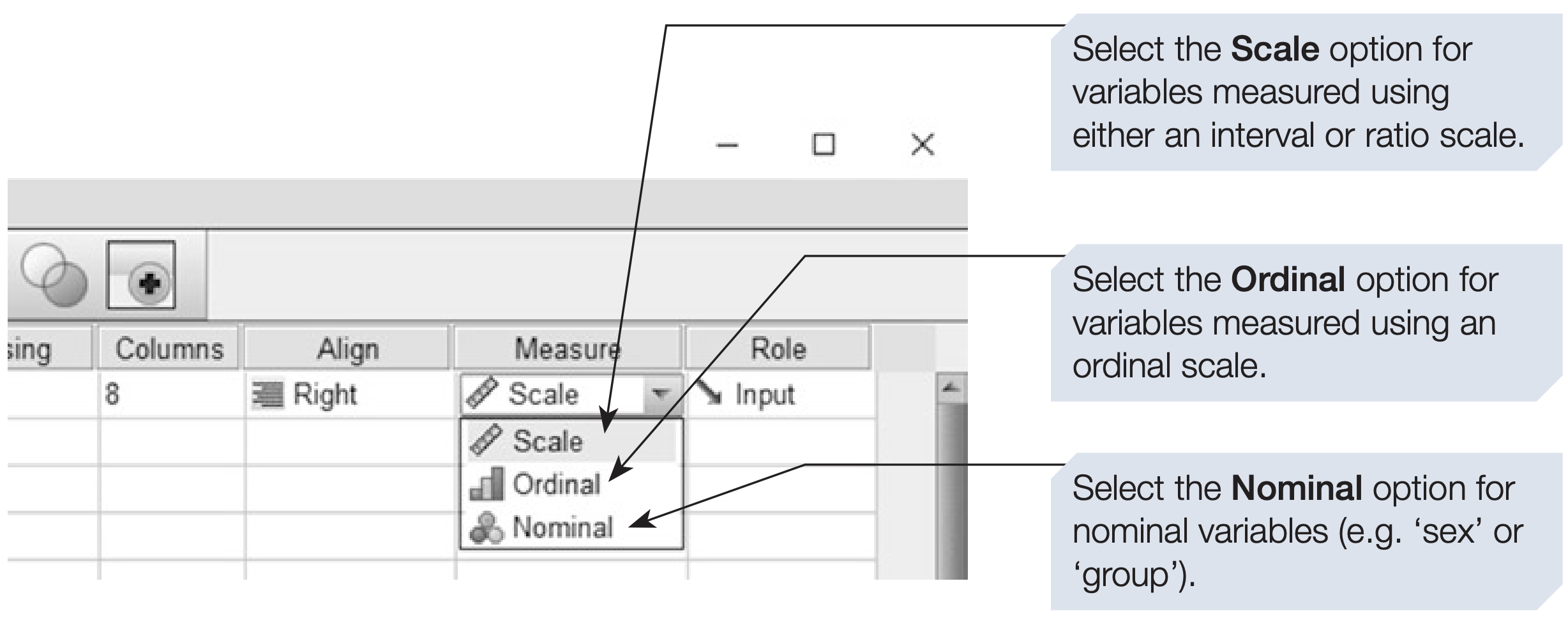
1.2.7 Measure
The Measure column specifies the measurement level of a variable.
SPSS provides three options:
- Nominal – categories without a meaningful order.
- Ordinal – categories with a meaningful order.
- Scale – quantitative variables measured on an interval or ratio scale.
Examples:
| Variable | Measure |
|---|---|
| Sex | Nominal |
| Education level | Ordinal |
| Age | Scale |
| Memory score | Scale |
The measurement level helps SPSS determine which analyses and procedures may be appropriate. However, the setting does not automatically determine whether an analysis is statistically appropriate.
1.2.8 Role
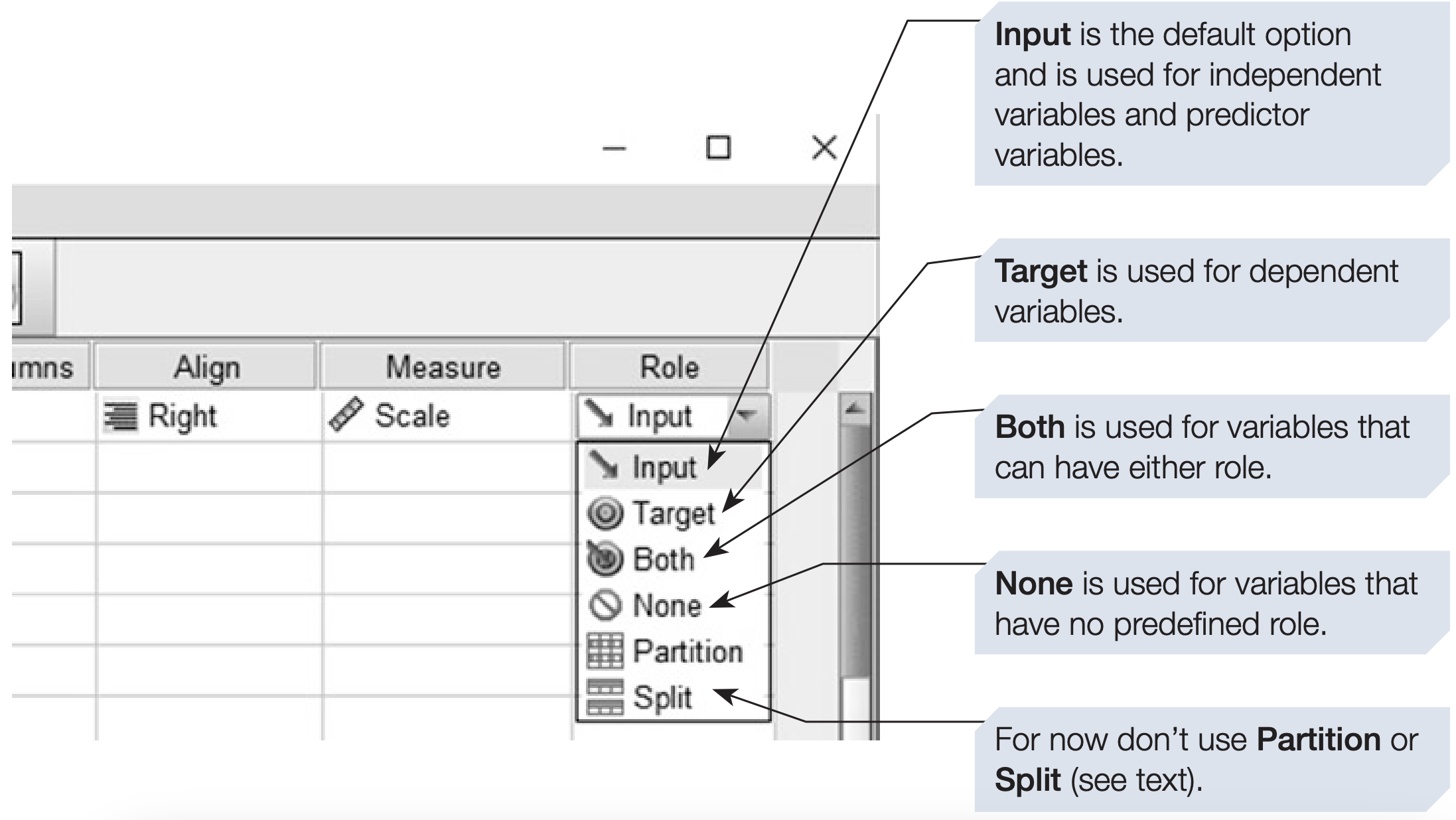
The Role column can be used to indicate the intended role of a variable in certain SPSS procedures.
Examples of roles include:
- Input
- Target
- Both
- None
- Partition
- Split
The Role setting is mainly useful for procedures that use roles to identify predictors, targets, or other analysis components. For many basic analyses, the default setting is sufficient.
1.3 Entering Data
We will enter data from a simple study in which we recorded each participant’s:
- Sex, coded as
1 = Male,2 = Female, and3 = Other. - Age, measured in years.
- MemoryScore, the number of words recalled from a list of 20.
In addition, each participant has been assigned an ID number.
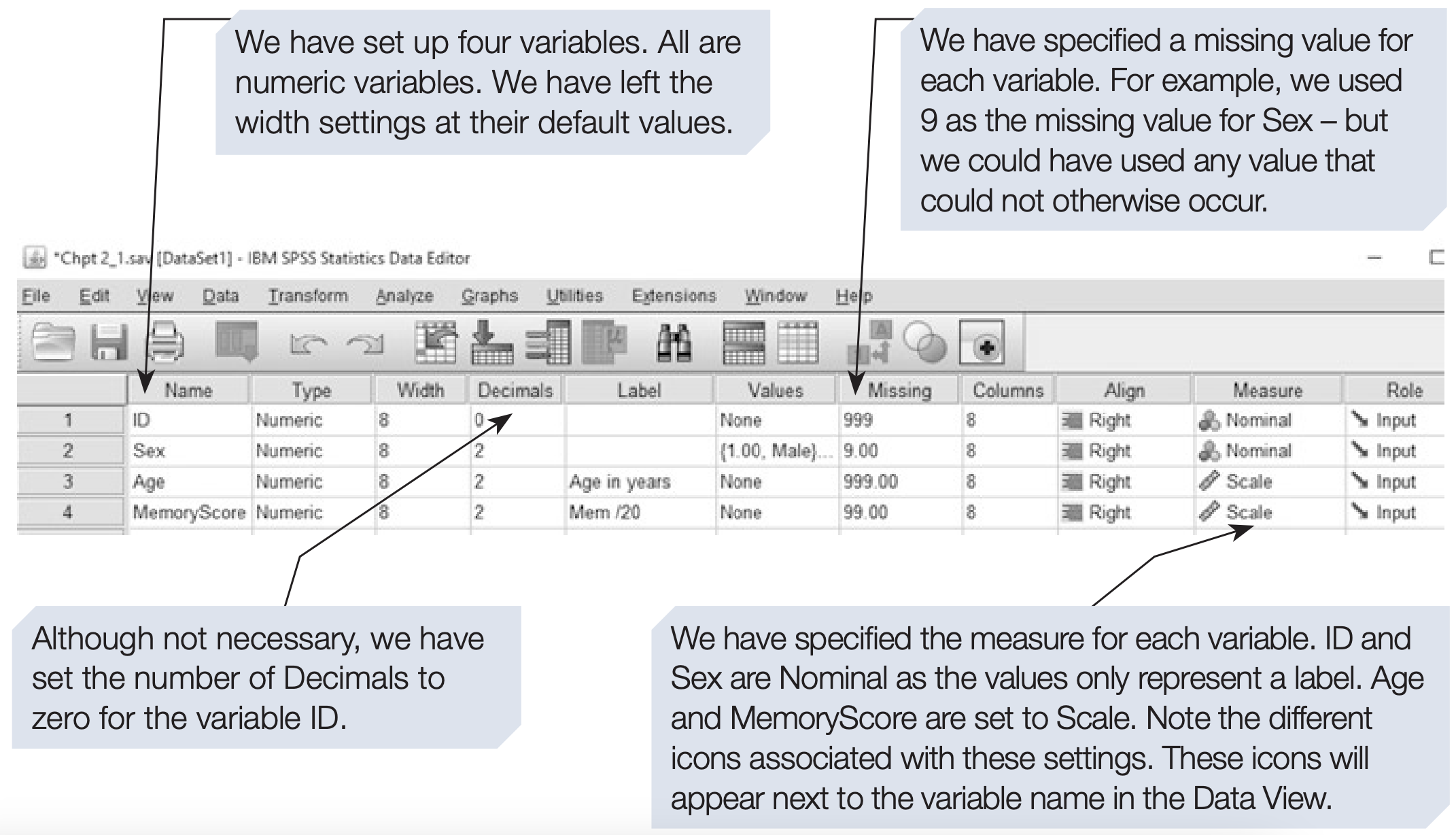
Before entering the data, we need to define the four variables in Variable View.
1.3.1 Defining Variables in Variable View
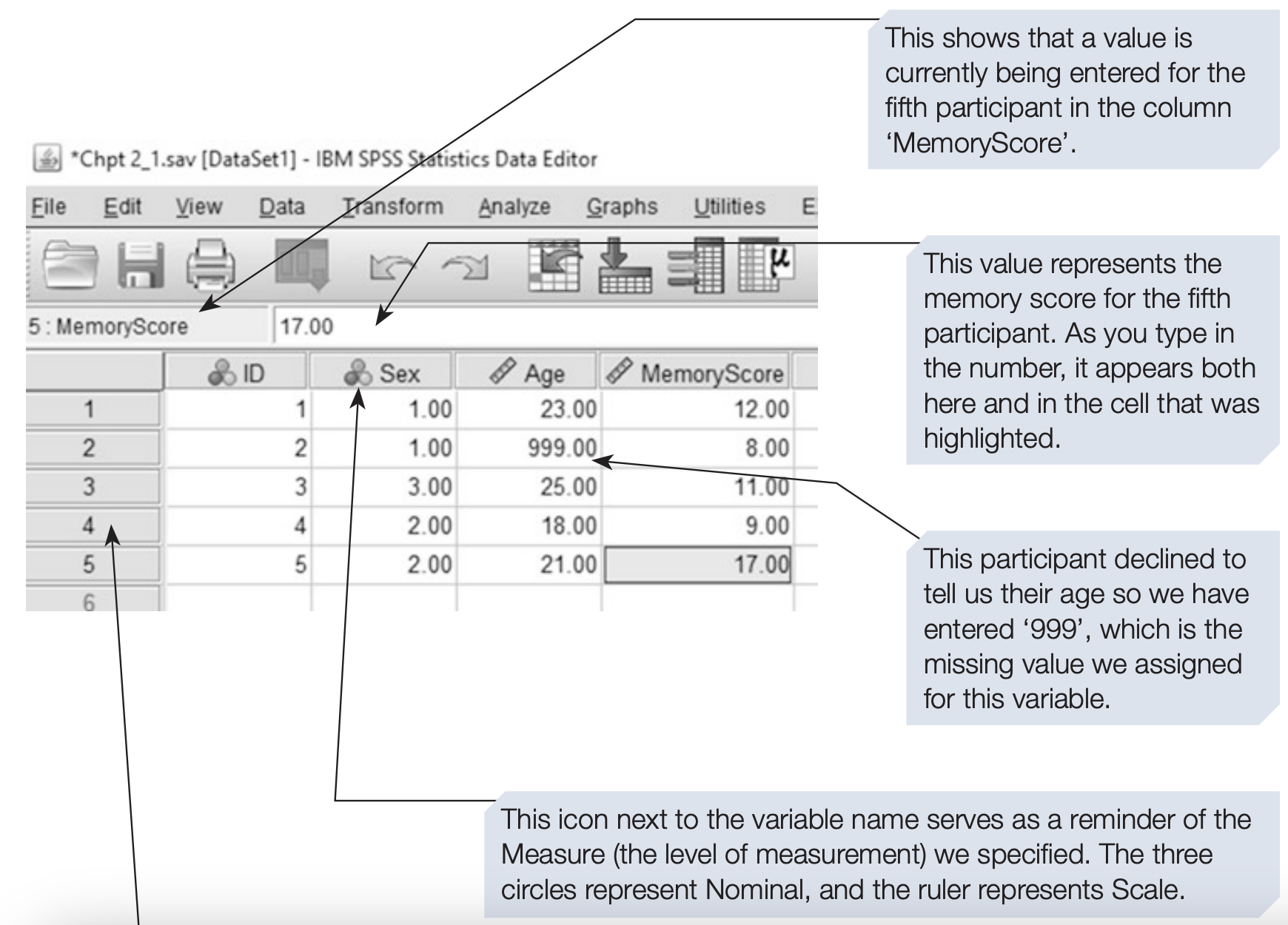
Once the variables have been defined, we can enter the observations in Data View.
- Each row represents one observation, such as one respondent.
- Each column represents one variable, such as Sex, Age, or MemoryScore.
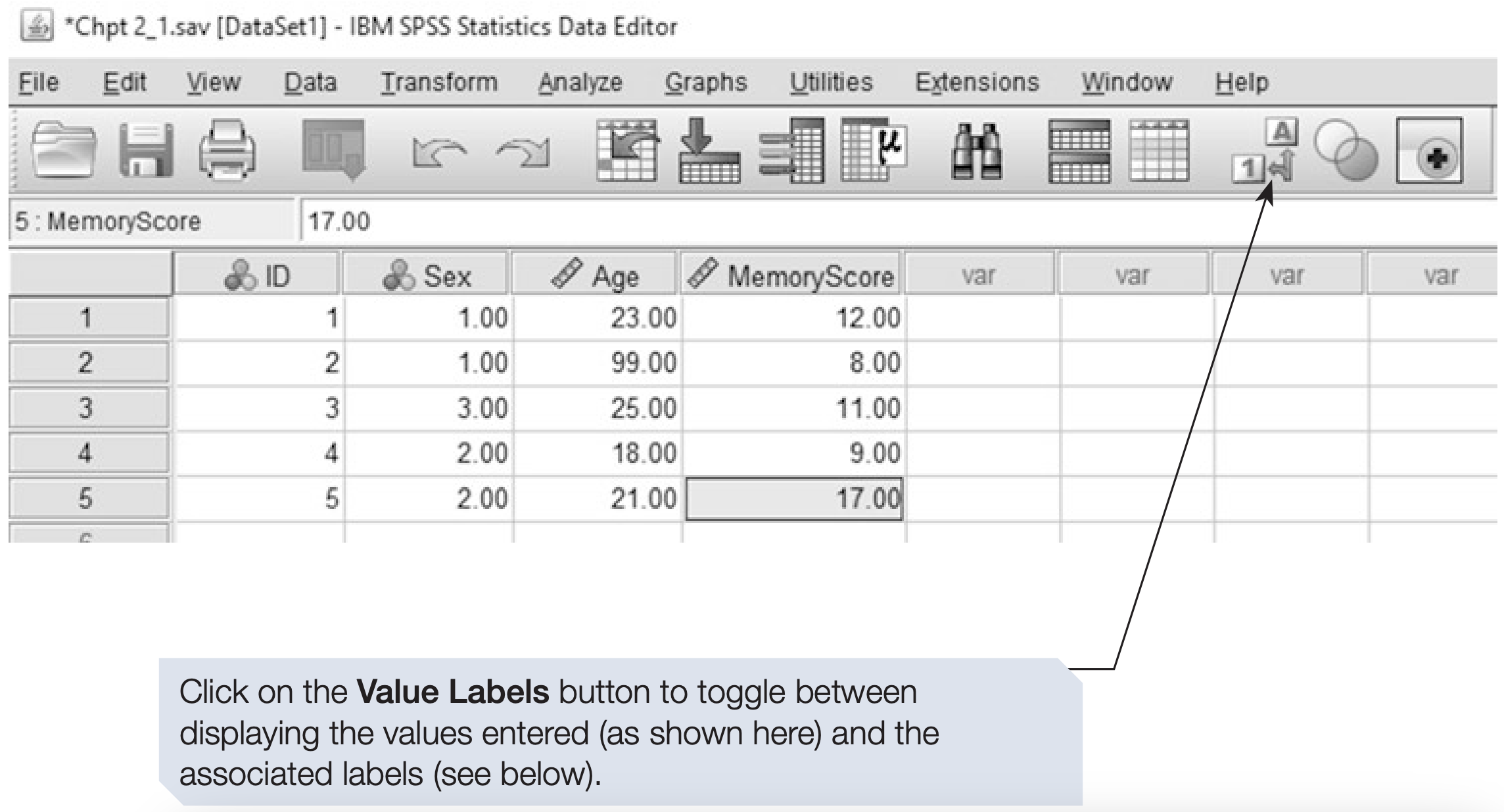
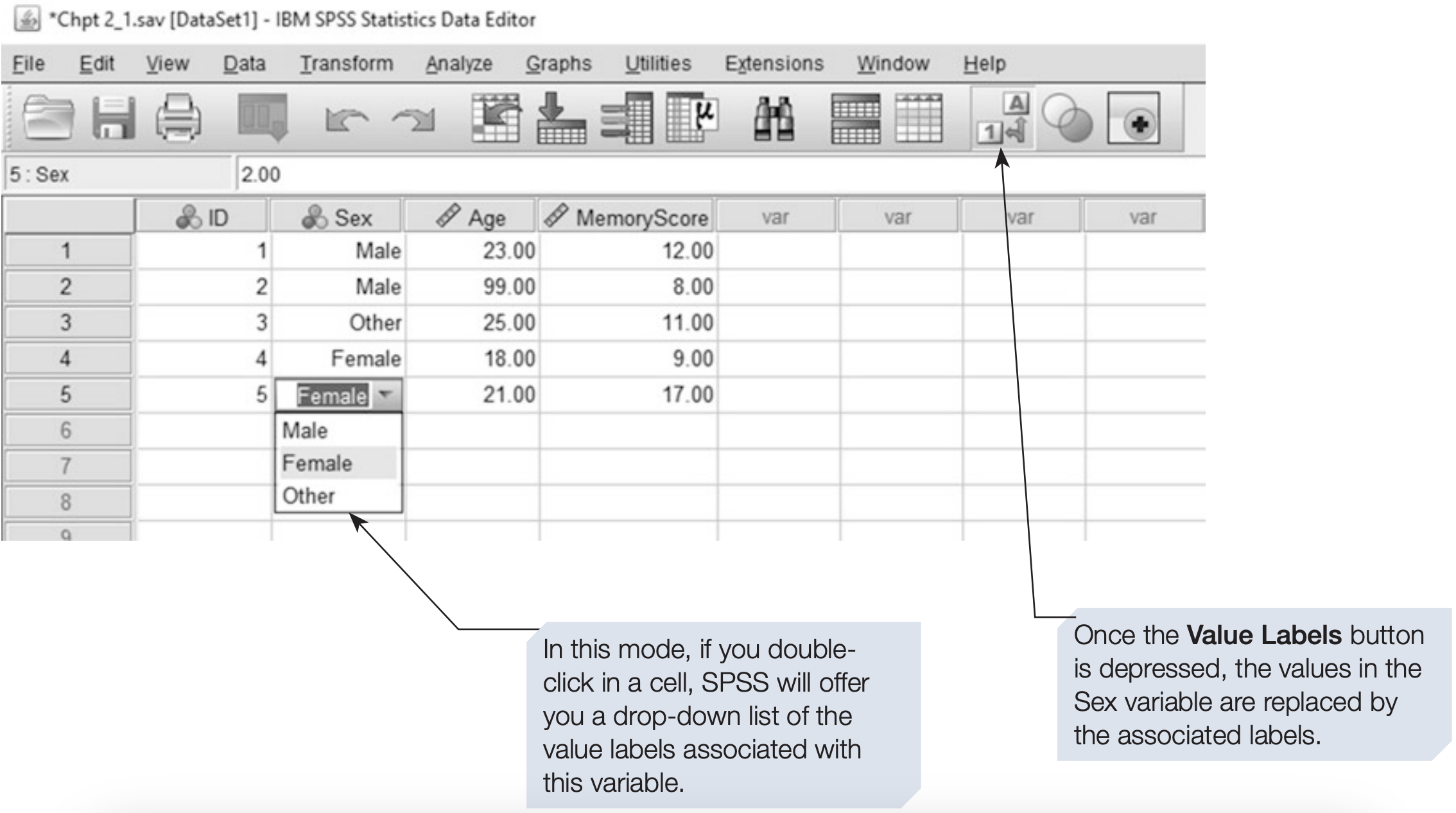
1.3.2 The Value Labels Button
The Value Labels button can be used to switch between displaying the numeric codes and their corresponding value labels.
For example, if:
1 = Male
2 = Female
3 = Other
SPSS can display either the numeric values or their labels in Data View.
1.4 Saving a Data File
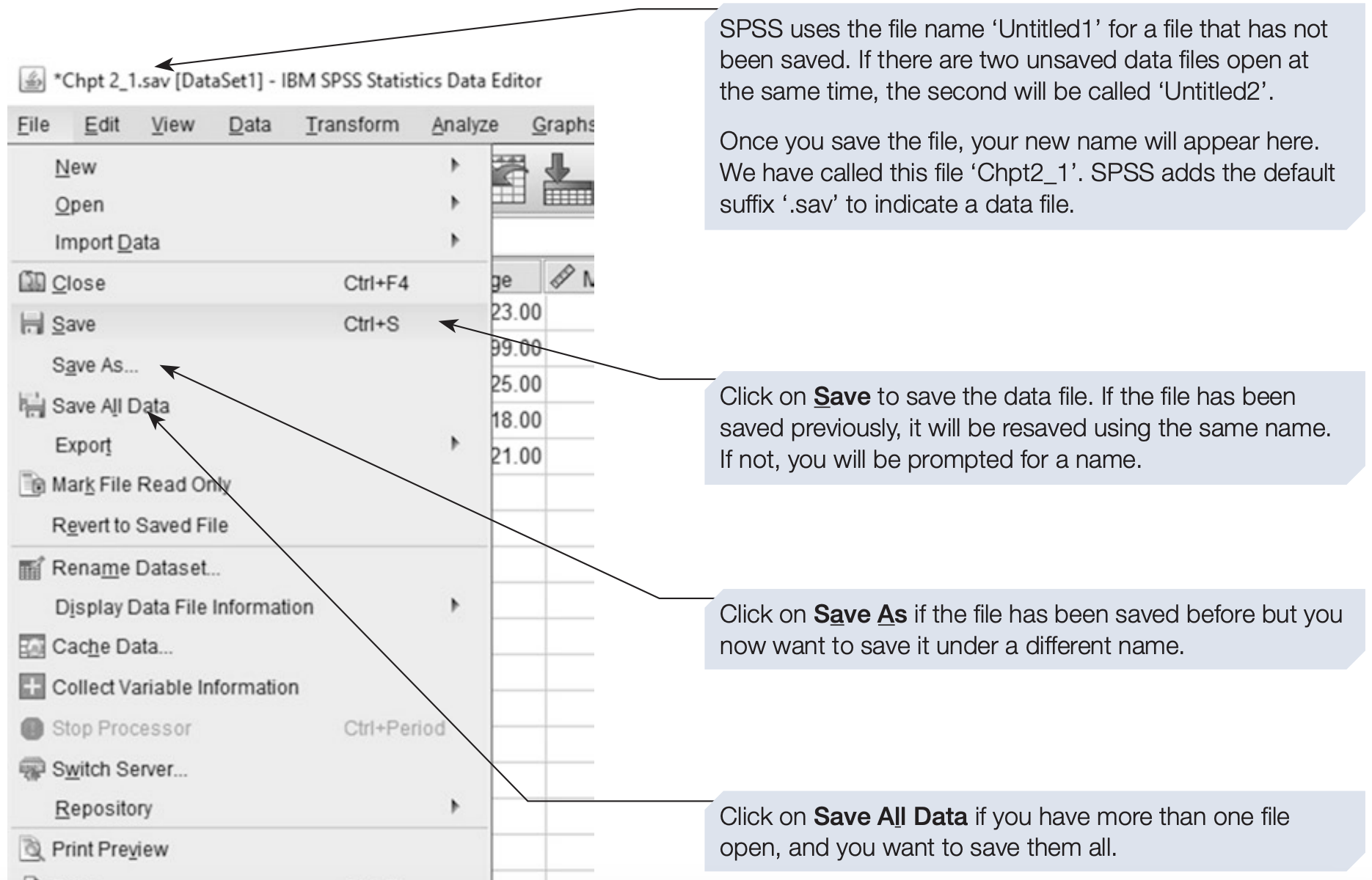
SPSS datasets are commonly saved in the native .sav format.
1.4.1 SPSS Syntax for Saving a Data File
* Save the current dataset as an SPSS .sav file.
SAVE OUTFILE='C:\your\folder\memory_experiment.sav'.
1.5 Opening a Data File
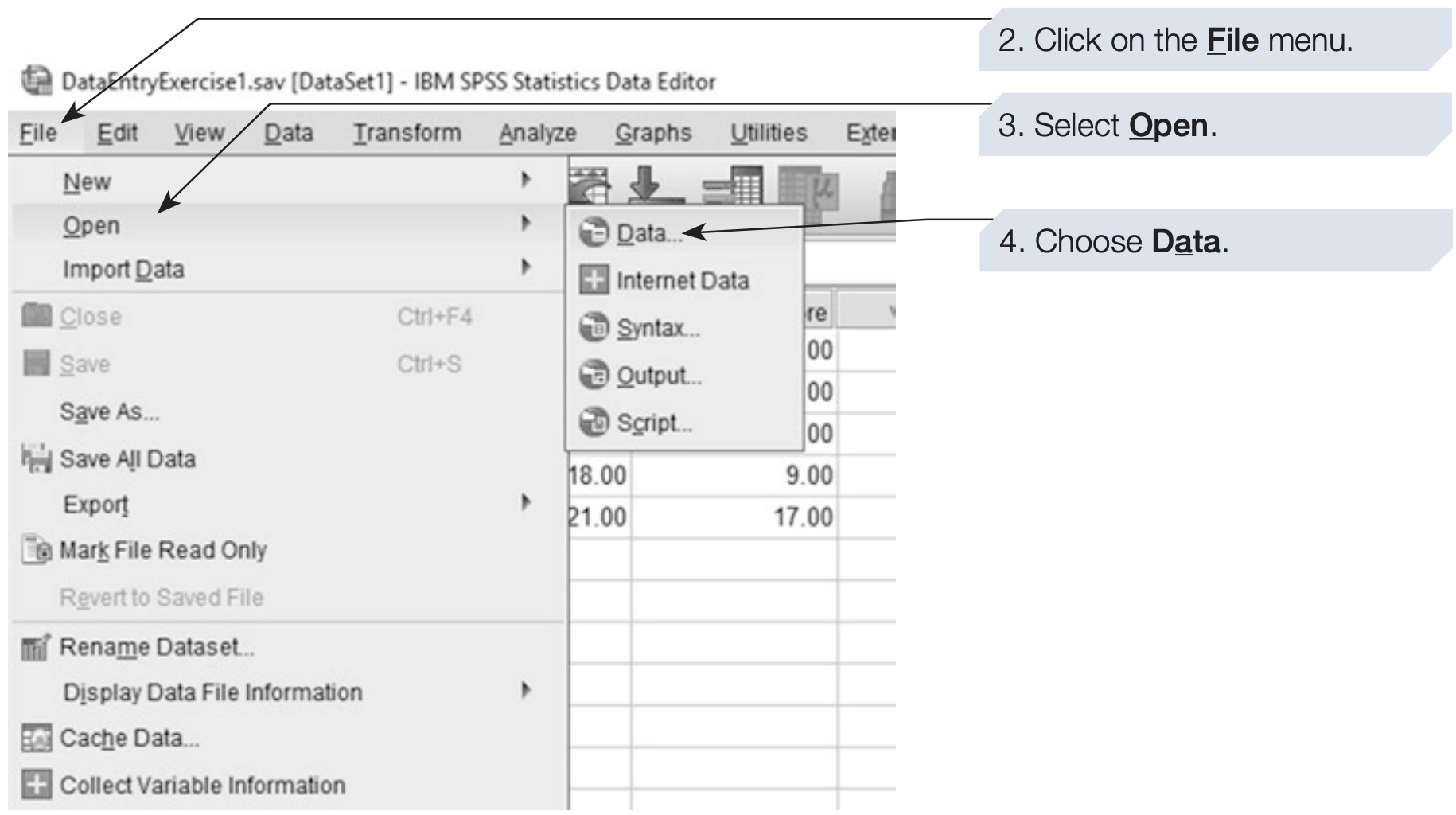
An existing SPSS data file can be opened using File > Open > Data.
1.5.1 SPSS Syntax for Opening a Data File
* Open an existing SPSS data file.
GET FILE='C:\your\folder\memory_experiment.sav'.
EXECUTE.
1.6 Data Entry Exercise
1.6.1 A Simple Memory Experiment
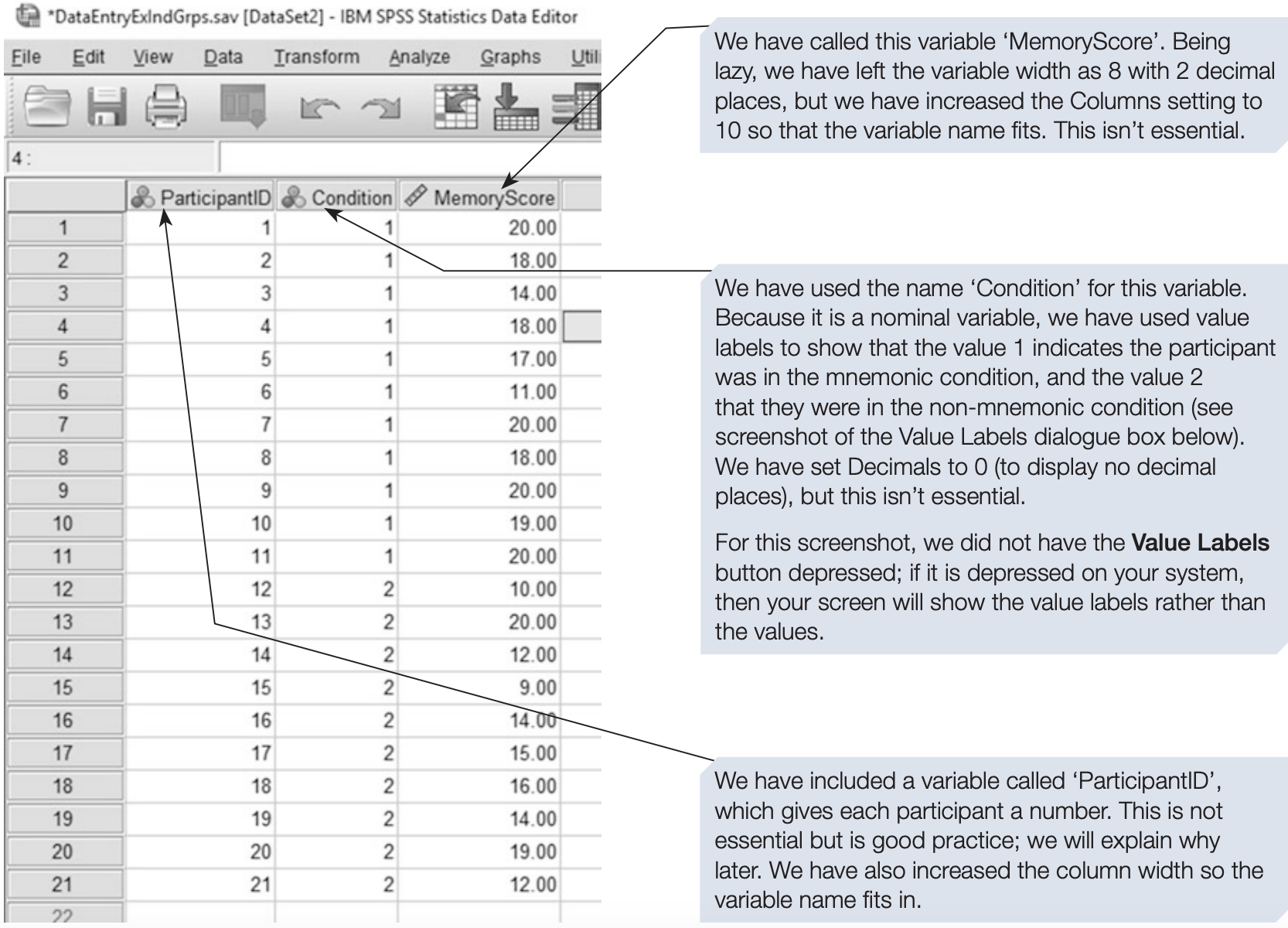
Twenty-one first-year undergraduates participated in a simple memory experiment designed to investigate the effect of a mnemonic strategy on memory for paired words.
The participants were randomly divided into two groups. All participants were given two minutes to memorise a list of 20 words presented in pairs. All participants were told to memorise the words, but those in the mnemonic instruction group were advised to try to form a mental image to link the two words in a pair.
For example, for the word pair Rocket - Hamster, a participant might imagine a small furry rodent being launched into space.
Participants in the non-mnemonic group were not given this instruction.
After learning the words for two minutes, all participants completed some simple mental arithmetic problems for two minutes. Finally, they tried to recall the words in any order. The number of words correctly recalled was recorded.
The data are summarised below.
Memory scores (out of 20) for participants in the mnemonic instruction group:
\[ 20,18,14,18,17,11,20,18,20,19,20 \]
Memory scores (out of 20) for participants in the non-mnemonic group:
\[ 10,20,12,9,14,15,16,14,19,12 \]
1.6.2 Tasks
Using these data, attempt to do the following:
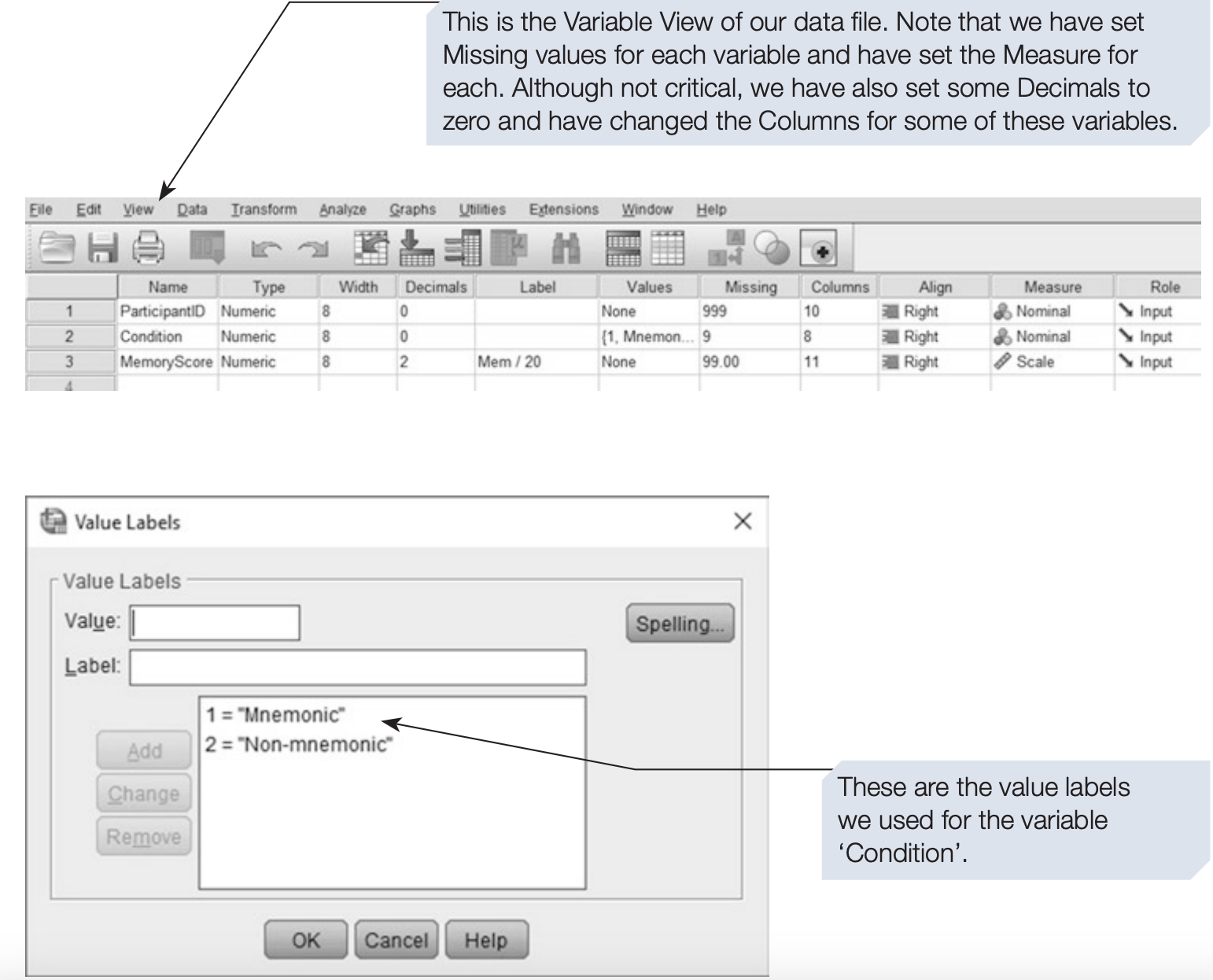
- Set up an SPSS data file to record these data. Give appropriate names to the variables.
- Apply appropriate value labels and variable labels.
- Specify the appropriate measurement level for each variable.
- Decide whether any user-missing values need to be specified.
- Enter and check the data.
- Save the file using an appropriate file name.
- Close and reopen the file to ensure that it has been saved correctly.
1.6.3 SPSS Syntax to Enter These Data
DATA LIST LIST /
  ParticipantID (F2.0)
  Condition     (F1.0)
  MemoryScore   (F2.0).

BEGIN DATA
 1 1 20
 2 1 18
 3 1 14
 4 1 18
 5 1 17
 6 1 11
 7 1 20
 8 1 18
 9 1 20
10 1 19
11 1 20
12 2 10
13 2 20
14 2 12
15 2  9
16 2 14
17 2 15
18 2 16
19 2 14
20 2 19
21 2 12
END DATA.

* Add variable labels.
VARIABLE LABELS
  ParticipantID 'Participant ID'
  Condition     'Mnemonic instruction group'
  MemoryScore   'Number of words recalled (0-20)'.

* Add value labels for Condition.
VALUE LABELS Condition
  1 'Mnemonic'
  2 'Non-mnemonic'.

* Specify measurement levels.
VARIABLE LEVEL
  ParticipantID (NOMINAL)
  Condition     (NOMINAL)
  MemoryScore   (SCALE).

EXECUTE.
2 Data Import
2.1 Importing Excel Data
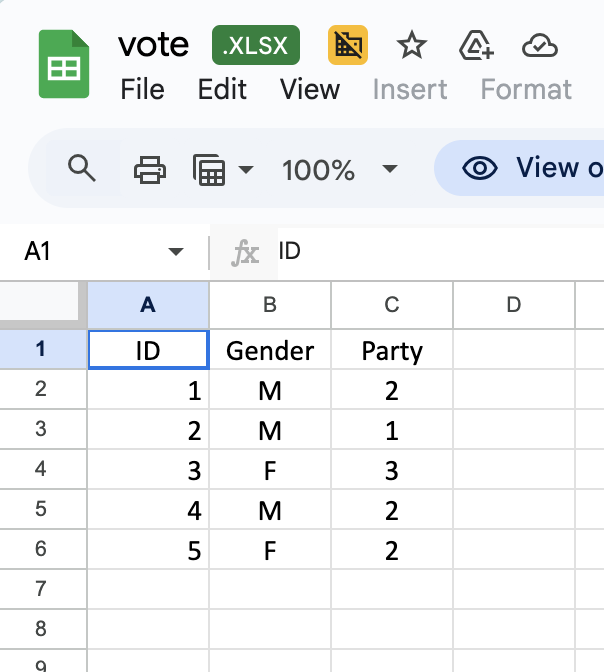
Suppose we have an Excel file vote.xlsx (download) containing data like the following:
2.1.1 Steps
- Open SPSS and go to
File > Open > Data. - In the file-selection window, select Excel (
*.xls,*.xlsx) as the file type. - Browse to the folder where the file is saved.
- Select the Excel file and click Open.
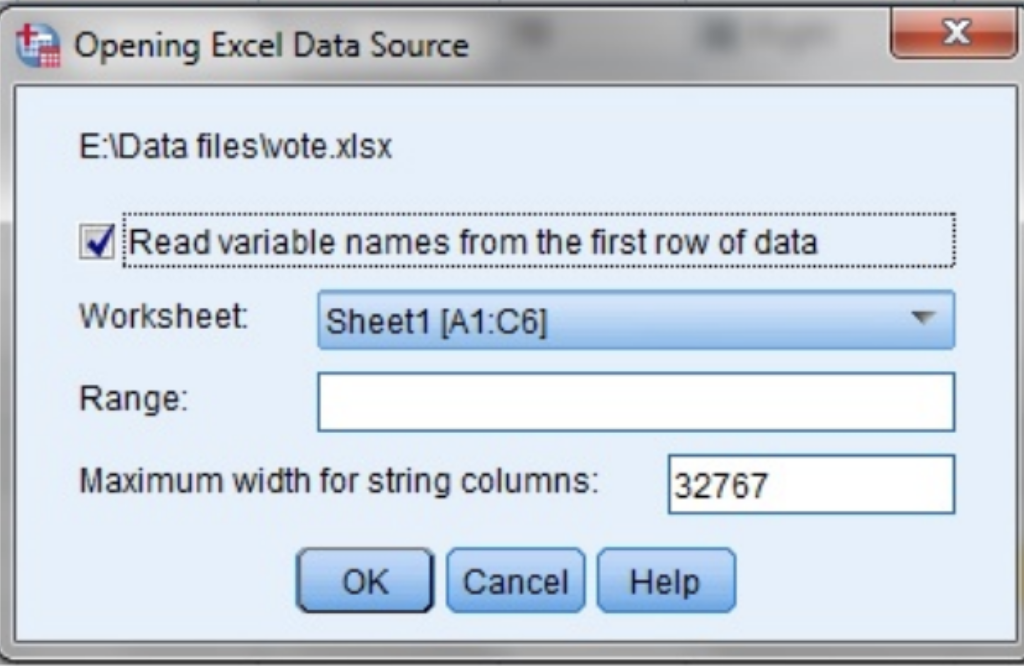
- SPSS will display an import dialog box.
2.1.2 Selecting Data from the File
In the Excel import dialog box:
- Select the appropriate worksheet if the workbook contains multiple sheets.
- By default, SPSS imports the data from the selected worksheet.
- If the worksheet contains data outside the required range, you can specify a Range, such as
A1:B6. - If the first row contains variable names, make sure the option indicating that the first row contains variable names is selected.
Example: To import only the variables ID and Gender from the first six rows, enter:
A1:B6in the Range field.
2.1.3 Practice
Try importing the following files:
hs0.sav(download)hs0.xls(download)
2.1.4 Reflection Question
What are the advantages of using an SPSS .sav file instead of an Excel file for an SPSS analysis?
Hint: Consider variable names, variable labels, value labels, measurement levels, formats, and missing-value definitions.
2.2 Importing Other Data
SPSS can also open or import datasets created in other statistical software, including:
- Stata (
.dta) - SAS (
.sas7bdat) - SPSS portable files (
.por)
This is particularly useful when collaborating with researchers who use different statistical software.
2.2.1 General Steps
- Go to
File > Open > Data. - From the File Type drop-down list, choose the relevant file format.
- Browse to the folder where the dataset is saved.
- Select the file and click Open.
- Review the imported dataset in Data View and Variable View.
Depending on the file format and the information stored in the original dataset, SPSS may preserve variable names, labels, formats, and other metadata.
2.2.2 Practice
Try importing a dataset from another statistical software package:
bdhs2014.dta(download) from Stataairline.sas7bdat(download) from SAS
2.2.3 SPSS Syntax for Importing Stata and SAS Data
* Import a Stata (.dta) file.
GET STATA FILE='C:\your\folder\bdhs2014.dta'.
EXECUTE.

* Import a SAS (.sas7bdat) file.
GET SAS FILE='C:\your\folder\airline.sas7bdat'.
EXECUTE.
2.2.4 Summary
- SPSS Data Editor: Use Variable View to define variables and Data View to enter and inspect observations.
- Variable definitions: Carefully specify names, types, labels, value labels, missing values, and measurement levels.
- Excel files: Convenient for data entry, sharing, and importing, but they do not provide the same SPSS-specific metadata as an
.savfile. - Stata and SAS files: SPSS can import datasets from other statistical software, which is useful for collaboration and data sharing.
- SPSS
.savfiles: The native SPSS format and generally the best choice when working primarily in SPSS because it preserves SPSS-specific dataset information such as variable and value labels, measurement levels, formats, and missing-value definitions.